

Switch between list and grid, and change the sort order
Both settings are shared across the whole app — the Library sections, folder views, and tag views all use the same one — and both are remembered between launches.
Switch between list and grid
Section titled “Switch between list and grid”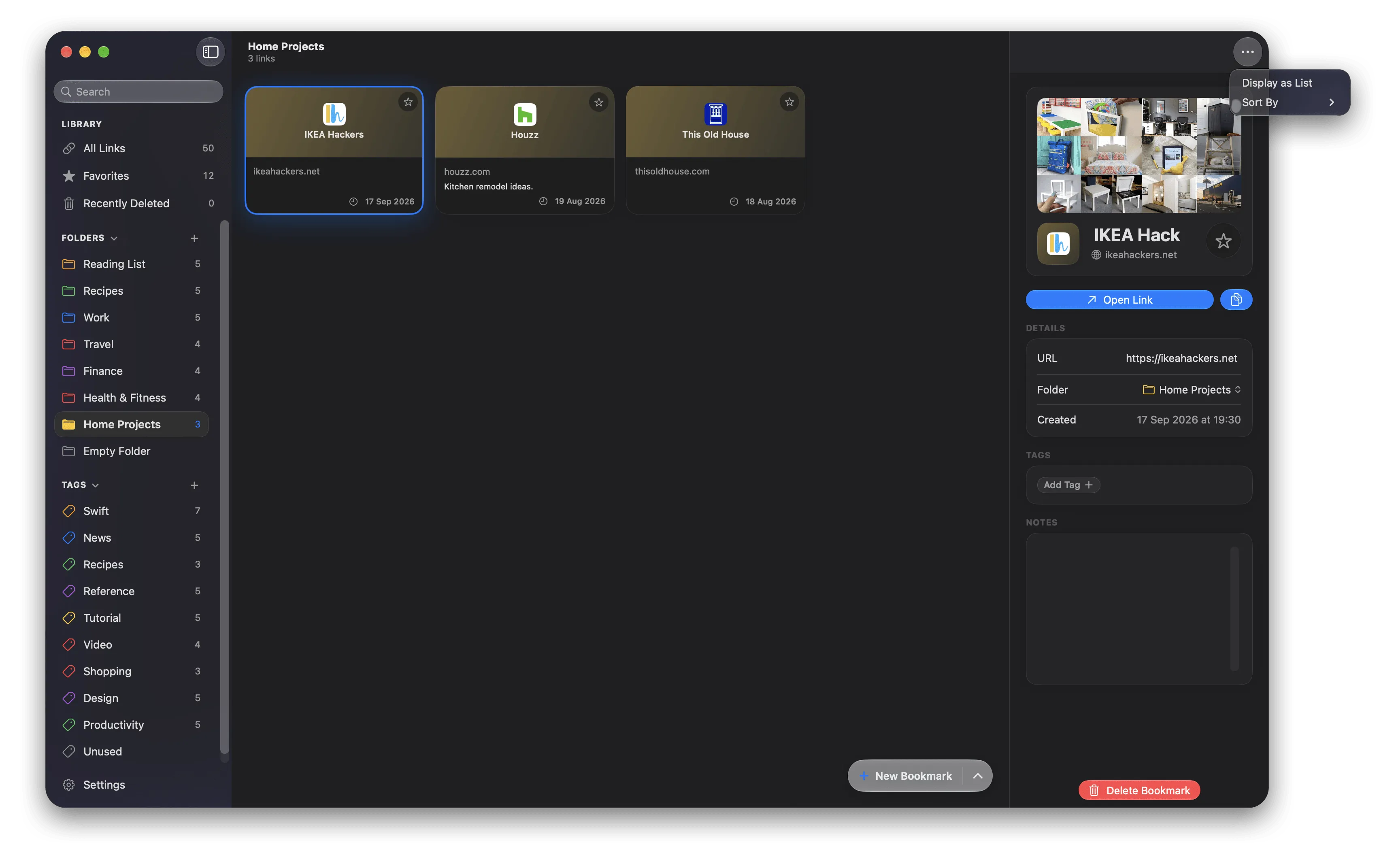
The ⋯ menu, where both display mode and sort order live.
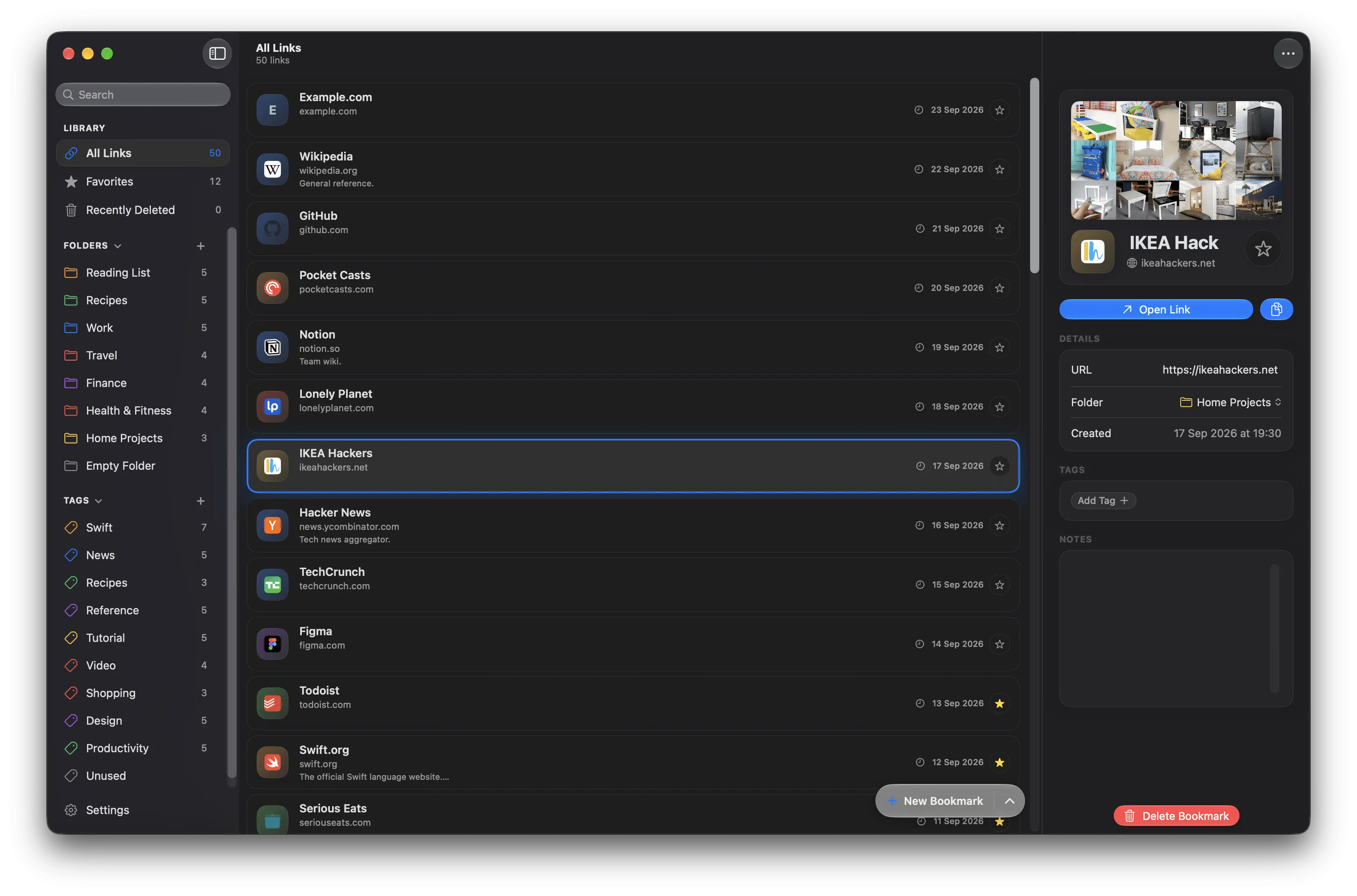
The same library in list mode. Narrow columns truncate long names.
From the toolbar:
- Open the ⋯ menu at the top-right of the middle column.
- Choose Display as Grid, or Display as List to go back.
On a Mac you can also use the View menu:
| Menu item | Shortcut |
|---|---|
| as List | ⌘1 |
| as Gallery | ⌘2 |
These two shortcuts are fixed and cannot be reassigned.
List shows one row per bookmark with its icon, name, host, note, and date. Grid shows cards with a coloured header, icon, and name. The grid reflows its column count as you resize the window.
Change the sort order
Section titled “Change the sort order”From the toolbar:
- Open the ⋯ menu at the top-right of the middle column.
- Open Sort By and pick an order.
On a Mac, the same options are under View ▸ Sort By.
| Order | Effect |
|---|---|
| Newest First | Most recently created first. This is the default. |
| Oldest First | Oldest created first. |
| Name A-Z | Alphabetical by name, ignoring case. |
| Name Z-A | Reverse alphabetical. |
Sorting applies to the list and grid views. It does not apply to search results, which are ordered by match quality, or to Recently Deleted, which is always ordered by deletion date, most recent first.
Move through the list with the keyboard
Section titled “Move through the list with the keyboard”On a Mac, click into the middle column and use the arrow keys. In the grid, ↑ and ↓ move a whole row at a time; ← and → move one card. The list scrolls to keep the selection visible.