

Organise bookmarks with folders
A bookmark belongs to at most one folder. Folders live in the FOLDERS section of the sidebar.
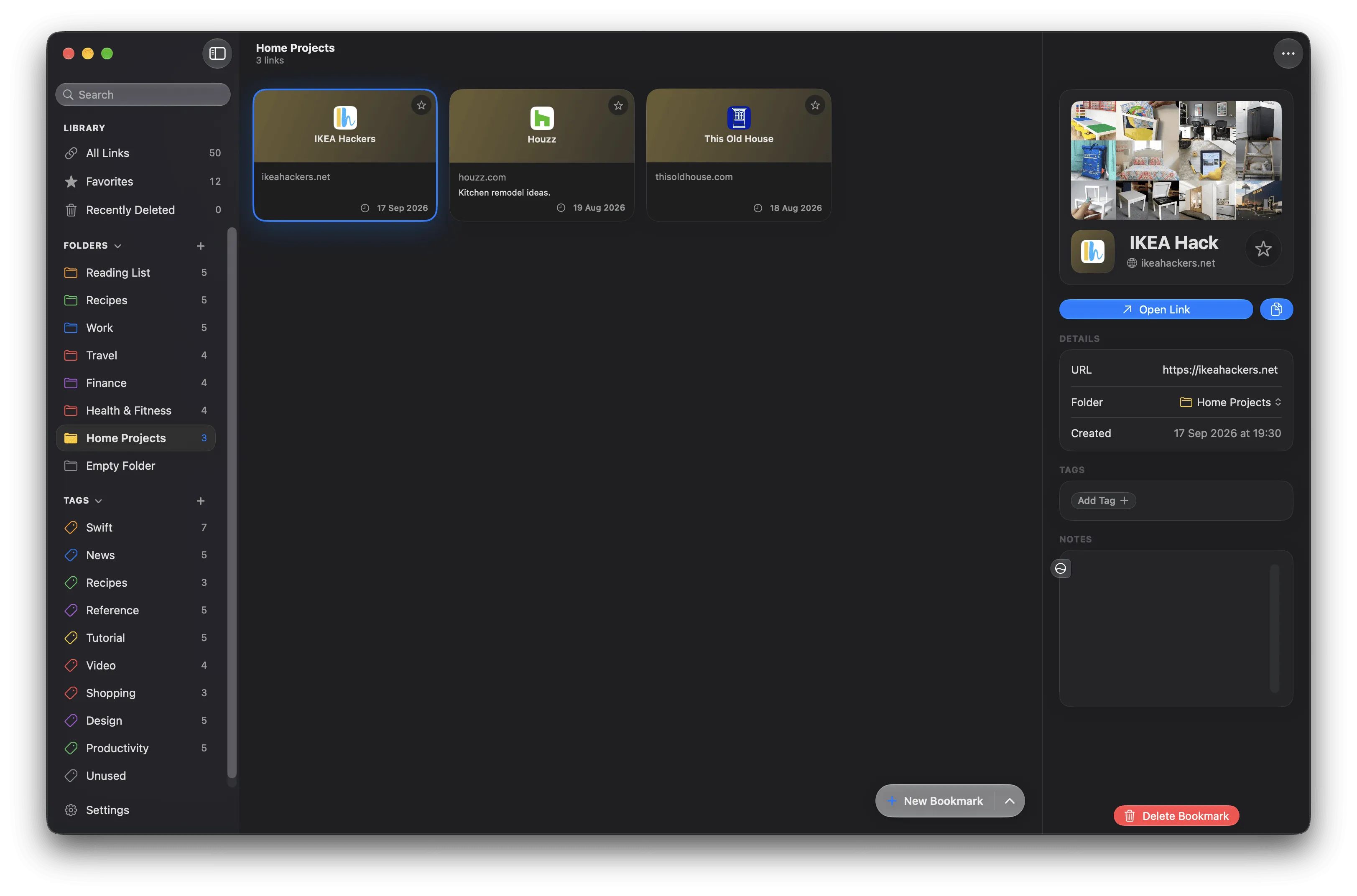
Selecting a folder filters the middle column to its bookmarks.
Create a folder
Section titled “Create a folder”Any of these work:
- Click the + next to the FOLDERS heading in the sidebar.
- Click the round + button at the bottom of the middle column, then New Folder.
- On a Mac, press ⌘F — or use File ▸ New Folder.
- From a bookmark’s Folder row in the detail area, choose New Folder….
Type a name, pick a colour from the eight swatches or the colour well beside them, and click Create.
Folder names must be unique, ignoring case. A duplicate name is refused with “A folder named “…” already exists.“
New folders are placed at the top of the list.
Assign a bookmark to a folder
Section titled “Assign a bookmark to a folder”Either:
- Select the bookmark, click the Folder row in the detail area, and pick a folder from the popover. Choose None to remove it from its folder.
- Drag the bookmark from the middle column onto a folder row in the sidebar.
- Drag a folder from the sidebar onto a bookmark row or card in the middle column.
Every one of these writes immediately. There is nothing to confirm.
Rename a folder
Section titled “Rename a folder”- Click the folder in the sidebar to select it.
- Click it again. The name turns into an editable field with the text selected.
- Type the new name and press Return.
Press Esc to abandon the edit. If you click away with unsaved changes, Linkgarden asks whether to save them.
An empty name is refused (“Folder name can’t be empty.”), as is a name that another folder already uses.
Change a folder’s colour
Section titled “Change a folder’s colour”- Click the folder in the sidebar to select it.
- Click its folder icon. A colour palette opens.
- Pick one of the eight presets, or use the colour well for anything else.
- Close the popover. The colour is saved as you dismiss it.
If saving fails, a small red message appears under the row.
Reorder folders
Section titled “Reorder folders”Drag a folder row up or down within the FOLDERS section. A line shows where it will land.
The order you set is the order used everywhere folders are listed, including the folder picker in the detail area and the folder dropdown in the Safari extension.
Collapse the section
Section titled “Collapse the section”Click the FOLDERS heading to collapse or expand the whole section. The chevron beside it shows the current state.
Delete a folder
Section titled “Delete a folder”- On a Mac, hover over the folder row for a moment. An × appears at the right-hand end — click it.
- Anywhere, open the row’s context menu (right-click, or touch and hold) and choose Delete Folder.
Confirm in the dialog. Deleting a folder does not delete the bookmarks in it — they simply stop having a folder. If the deleted folder was selected, the sidebar returns to All Links.
Folder counts
Section titled “Folder counts”The number on the right of each folder row is how many bookmarks are in it. Bookmarks sitting in Recently Deleted are not counted.