Getting started
By the end of this tutorial you will have saved a link, given it a folder and a tag, and found it again with search. It takes about five minutes.
You need Linkgarden installed on a Mac or an iPad, and nothing else.
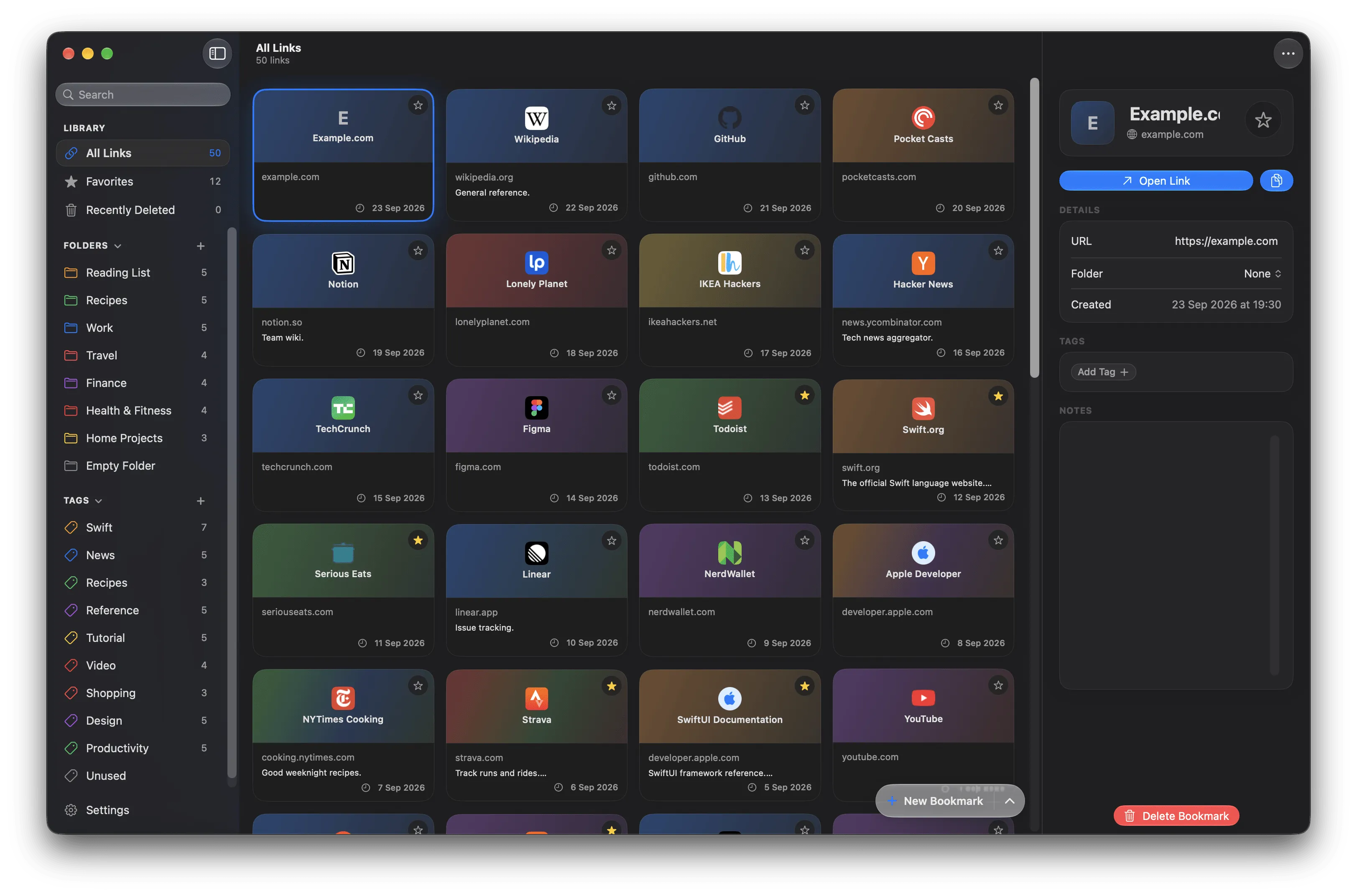
The three-column layout, shown here on a Mac.
1. Open Linkgarden
Section titled “1. Open Linkgarden”Launch the app. You will see three areas side by side:
- the sidebar on the left, with a search field, a Library section (All Links, Favorites, Recently Deleted), and space for your folders and tags
- the list in the middle, empty for now
- the detail area on the right
All Links is already selected in the sidebar.
2. Save your first bookmark
Section titled “2. Save your first bookmark”Click the round + button at the bottom-left of the middle column. Three options fan out. Choose New Bookmark.
A sheet opens with the cursor already in the Name field.
Click the URL row and type:
apple.comPress Return. Linkgarden turns that into https://apple.com for you.
Click Save. The sheet closes, your bookmark appears in the middle column, and its details open on the right.
3. Put it in a folder
Section titled “3. Put it in a folder”In the detail area on the right, find the Details card and the Folder row. It currently says None.
Click None, then choose New Folder… at the bottom of the popover.
Type Reading as the name, pick a colour, and click Create.
The folder is created, assigned to your bookmark, and appears under FOLDERS in the sidebar. There is no Save button here — the assignment was written the moment you made it.
4. Add a tag
Section titled “4. Add a tag”Still in the detail area, find the Tags card and click Add Tag.
Choose New Tag…, type Later, pick a colour, and click Create.
The new tag is created and attached to the bookmark straight away. It also appears under TAGS in the sidebar.
5. Write a note
Section titled “5. Write a note”Click into the Notes box at the bottom of the detail area and type
something — Check the Mac lineup. will do.
Now click anywhere outside the box. That is what saves the note: notes are written when the field loses focus.
6. Find it again
Section titled “6. Find it again”Click the search field at the top of the sidebar and type:
appleThe middle column switches to search results, grouped into Bookmarks, Folders, and Tags. Your bookmark is at the top.
Press Esc to clear the search and go back.
7. Browse by folder and by tag
Section titled “7. Browse by folder and by tag”Click Reading under FOLDERS in the sidebar. The middle column now shows only the bookmarks in that folder.
Click Later under TAGS. Now it shows only the bookmarks carrying that tag.
Click All Links to see everything again.
What you have now
Section titled “What you have now”A saved bookmark with a name, a URL, a folder, a tag, and a note — and three ways to get back to it: the Library, the sidebar, and search.