

Search your library
Run a search
Section titled “Run a search”Click the search field at the top of the sidebar and start typing. Results replace the middle column as you type — there is no Search button.
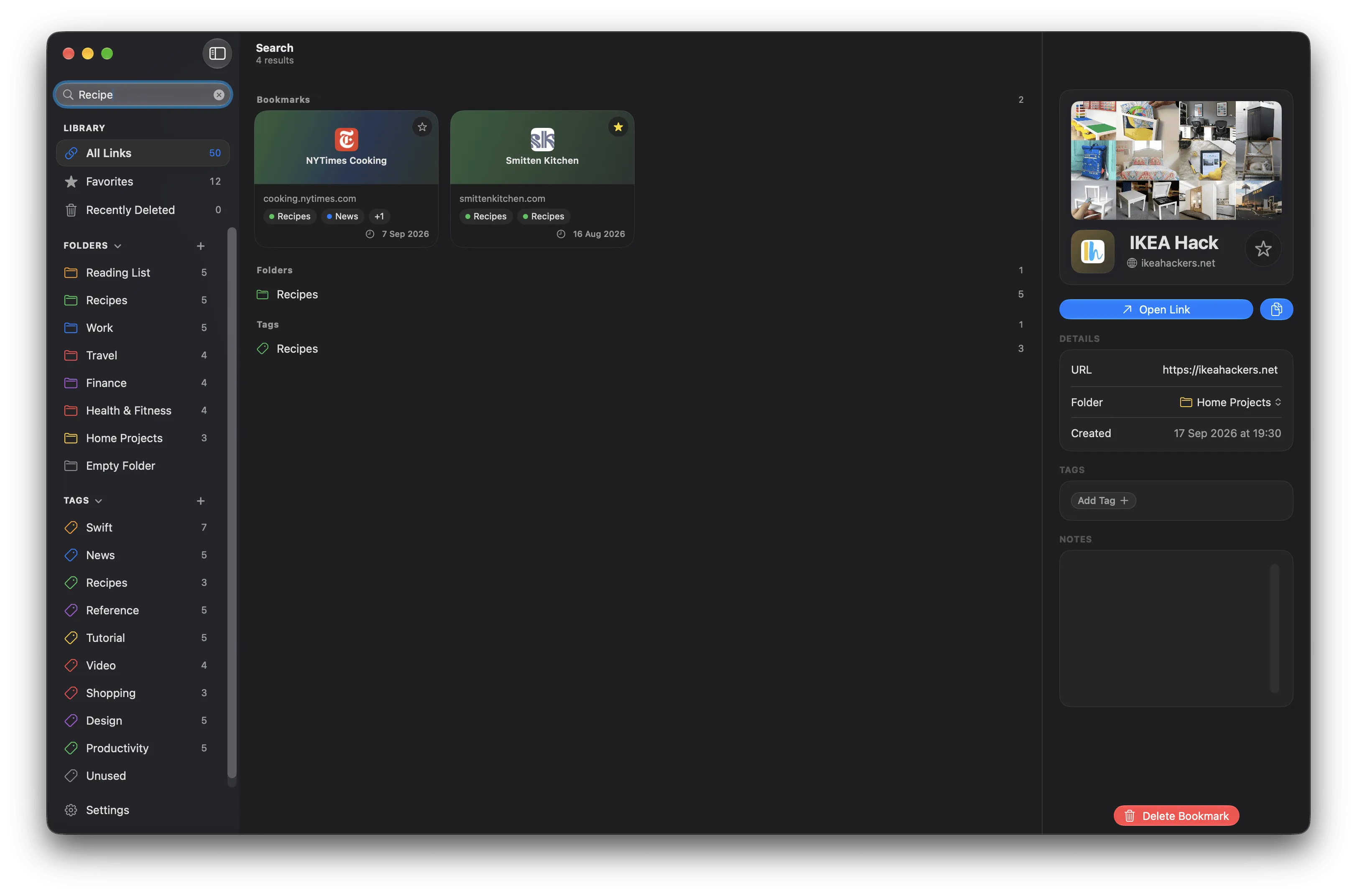
Results are grouped by what matched: bookmarks, then folders, then tags.
On a Mac you can jump straight to the field with ⌥⌘F, or Edit ▸ Find. That shortcut is customisable.
What gets searched
Section titled “What gets searched”| Type | Matched against |
|---|---|
| Bookmarks | Name, web address, notes |
| Folders | Name |
| Tags | Name |
Bookmarks in Recently Deleted are excluded from results.
Results are grouped under Bookmarks, Folders, and Tags, each with a count. The middle column’s subtitle shows the total.
Matching is case-insensitive and ignores accents, and tolerates small typos — see How search ranks results.
Open a result
Section titled “Open a result”- A bookmark — click it. Its details open on the right. The search text stays in the field, so you can keep working through the results.
- A folder or a tag — click it. Linkgarden navigates to that folder or tag and clears the search.
Bookmark results show small coloured chips for the folder and tags each one
belongs to. Clicking a chip navigates to that folder or tag, keeping the
bookmark selected. If a bookmark has more chips than fit, a +N chip opens the
full list.
Clear the search
Section titled “Clear the search”- Press Esc while the field is focused.
- Click the × at the right of the field.
- Click a folder or tag result.
Sort order does not apply
Section titled “Sort order does not apply”The list and grid views honour your chosen sort order. Search results do not — they are always ordered by how well each item matches.
The view mode (list or grid) does carry over: bookmark results are drawn as rows or as cards to match whichever you are using.